What are Units?
Units let you build and track your own tactical picture directly on the map. You can place units, record their positions and facing directions, and update them as your own picture of the situation changes — rather than relying on a pre-loaded military database, each unit reflects information available to you.
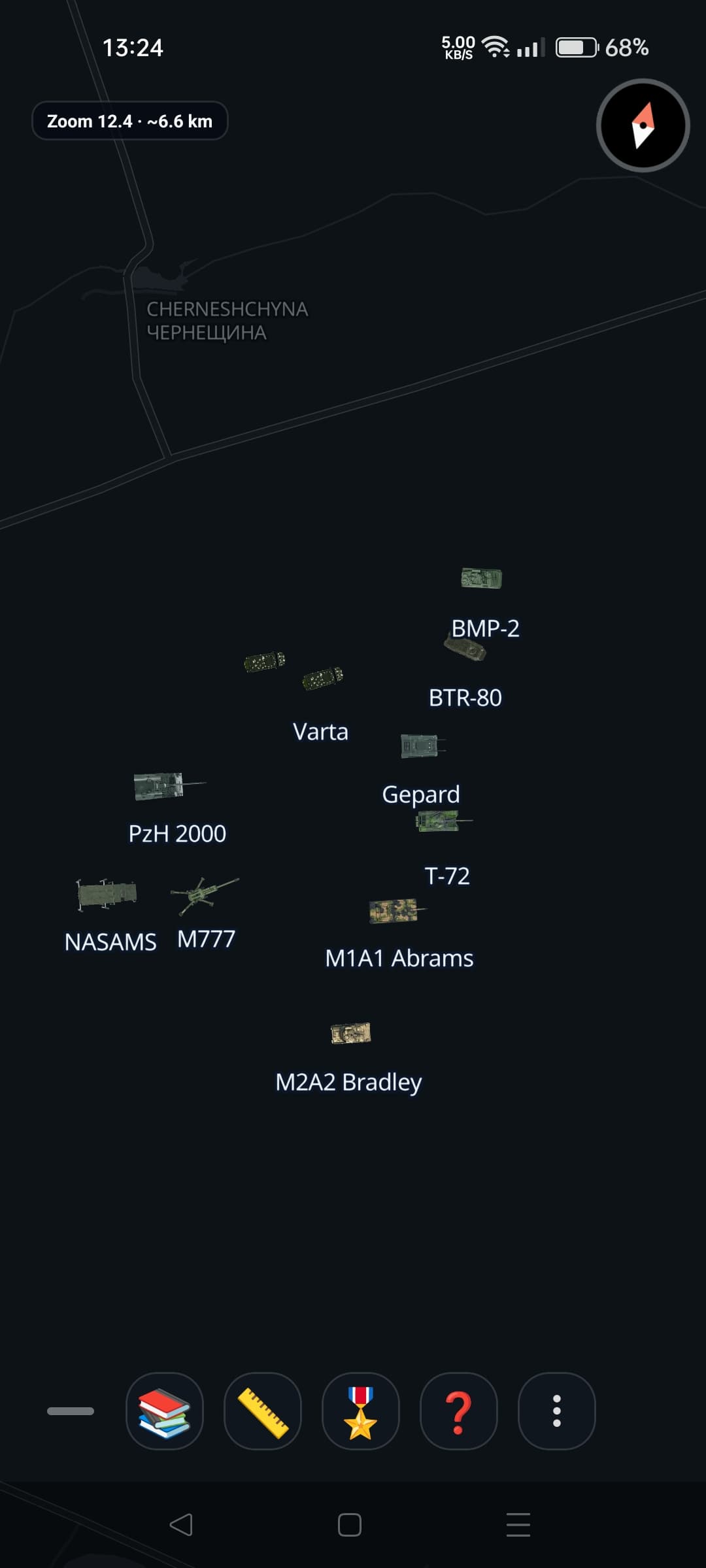
Units placed on the map, each shown as a top-down icon with a name label
Creating a unit
Open the Units panel from the map toolbar. At the top, two buttons switch between your saved units and the vehicle picker, plus a shortcut that opens the Logo Library directly:
- Your units — view and manage your saved formations and assets in a hierarchical structure; tap a formation to open it and view its subordinate formations and units.
- Vehicles — choose the vehicle or equipment type for a new unit.
- Logo Library — opens your emblem library directly, without leaving the panel.
To create a unit, pick a country first — the country list is searchable and covers every country, with its own set of unit icons. Tap + to add a new country chip, searching from the full country list. Long-press an existing chip to rename its label (just how it's displayed to you) or delete it — deleting a country also removes all units placed under it. Then choose the vehicle or equipment type (e.g. a specific tank, IFV, helicopter, or air-defense system), give the unit a name and optional description, and assign an emblem from your Logo Library if you want one.
Organize units into formations
Build your own hierarchy by adding formations before, after, or underneath another formation — a formation can hold sub-formations or individual assets, so Your units becomes your own command structure instead of a flat list. Tap a formation to move into it and view its subordinate formations and assets.
Formation cards show three arrows for building the structure: add a new formation before or after the current one, or add one underneath it as a subordinate. These only appear on formations — individual assets don't hold children.
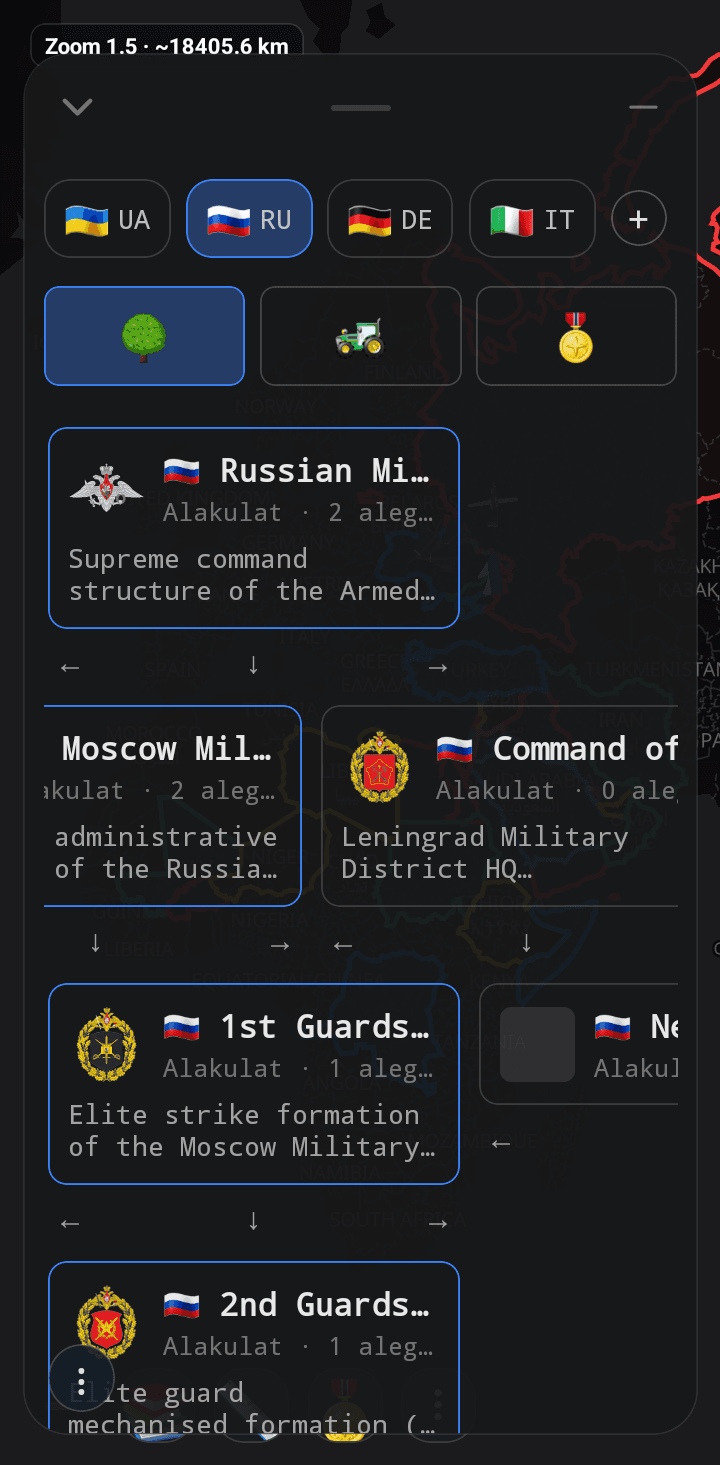
Formations organized into a hierarchy, with subordinate formations and units below each one
Placing & rotating on the map
Once you've set up a unit, tap anywhere on the map to place it there. Before confirming, you can rotate the icon to match the direction it's facing and adjust its size with a slider — useful for keeping smaller or larger equipment types readable at different zoom levels.
Moving a unit
When new information changes your understanding of a unit's position, update it on the map. Long-press a unit icon to select it — long-press additional units to select several at once — then tap elsewhere on the map to set their new position. The map animates the move so you can follow the change, along with the distance and estimated time. This helps you track changes in your own tactical picture; it is not a real-time feed or route planning system.
Editing & managing a unit
Tap a unit's icon on the map to open its details — name, country, type, category, and icon, plus its current status, direction, and exact position, with a timestamp for when it was created and last updated. An Edit button takes you back into the editor to change any of it.
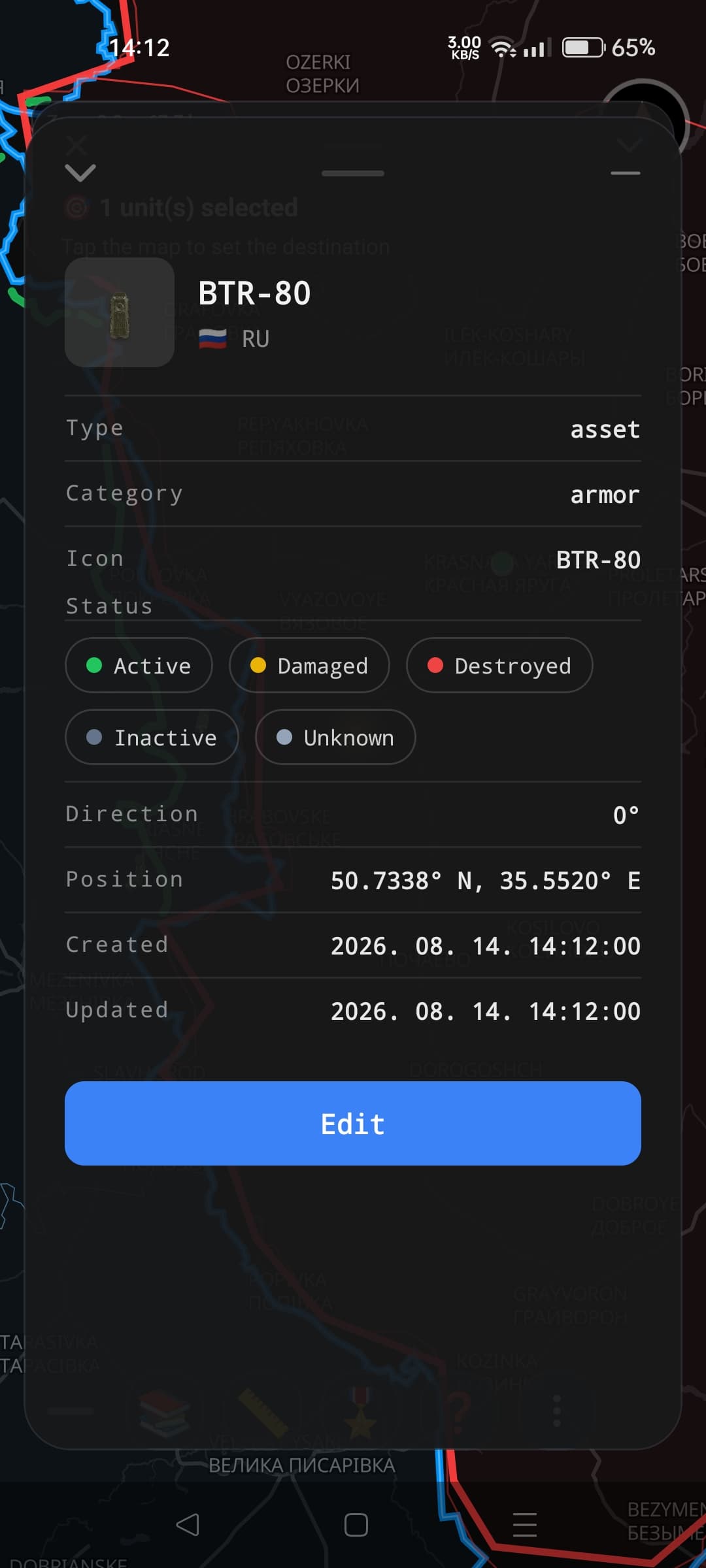
Unit detail view — status, direction, position, and timestamps
Status lets you record the current state of a unit — Active, Damaged, Destroyed, Inactive, or Unknown — so your tactical picture reflects not just where a unit is, but what state it is in.
In the saved units list, long-press a unit for quick actions: reposition it, rename it, or delete it.
Emblem & Logo Library
Learn how to add, organize, assign, back up and restore your custom emblems and logos.
Country-specific guides
Some countries have their own detailed unit guide, covering their specific unit tree, categories, and examples as they appear in Newslyfe.